> ## Documentation Index
> Fetch the complete documentation index at: https://docs.vogent.ai/llms.txt
> Use this file to discover all available pages before exploring further.
# Twilio SIP Import
> Import a Twilio phone number into Vogent
Here are the steps to import a Twilio phone number into Vogent.
## For Outbound Calls
1. Go to the Twilio Console and search for "Elastic SIP Trunks," and navigate to the page.
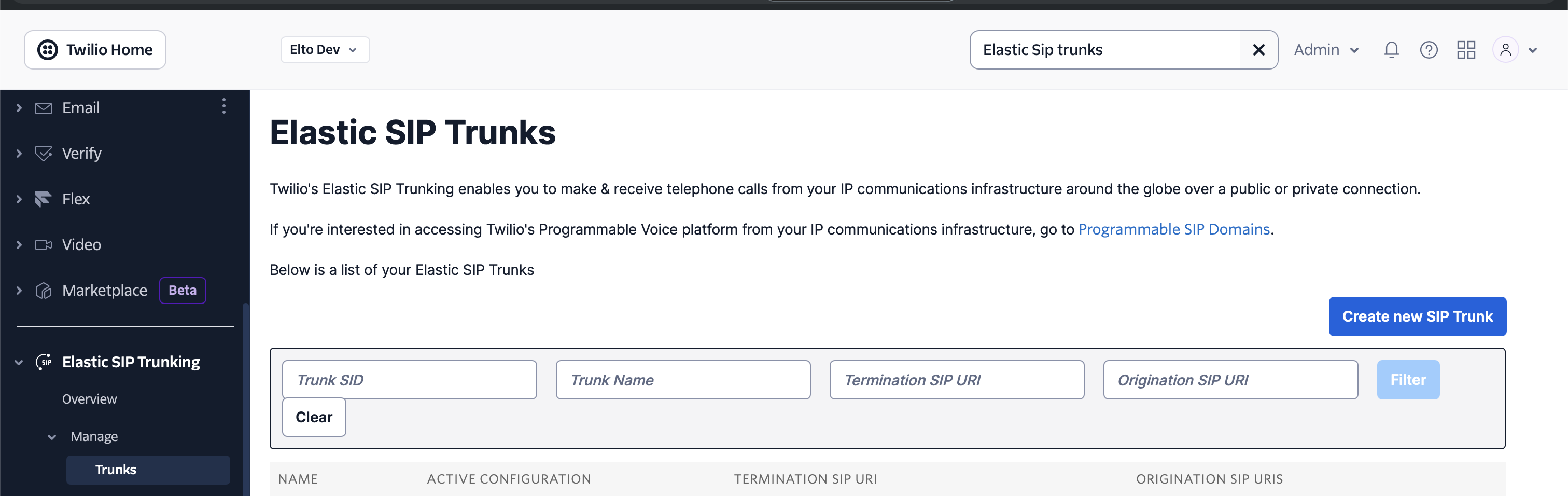 2. Click **Create new SIP Trunk**, you should automatically be taken to the page where you can configure your SIP trunk.
3. Go to the **Termination** tab, and enter a **Termination SIP URI**, you can pick any URI you want.
2. Click **Create new SIP Trunk**, you should automatically be taken to the page where you can configure your SIP trunk.
3. Go to the **Termination** tab, and enter a **Termination SIP URI**, you can pick any URI you want.
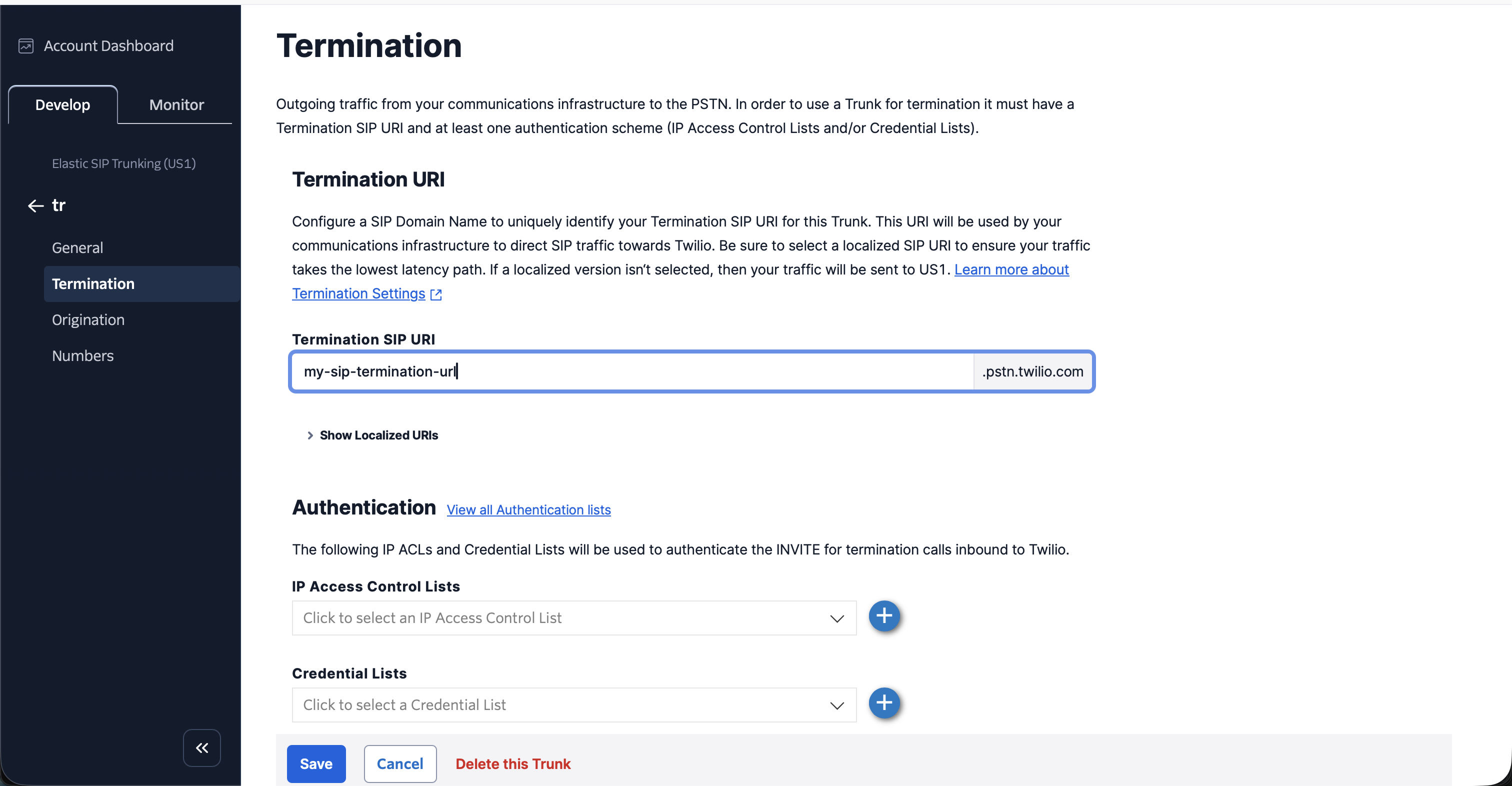 Make sure you leave Secure Trunking disabled.
4. Go to the **Credential Lists** section and create a new credential list, use a strong username and password.
Make sure you leave the IP Access Control List empty, as Vogent does not support a static range of IP addresses for outbound SIP calls outside of the enterprise plan. Please contact us if this is a security requirement for your use case.
5. Click **Save**.
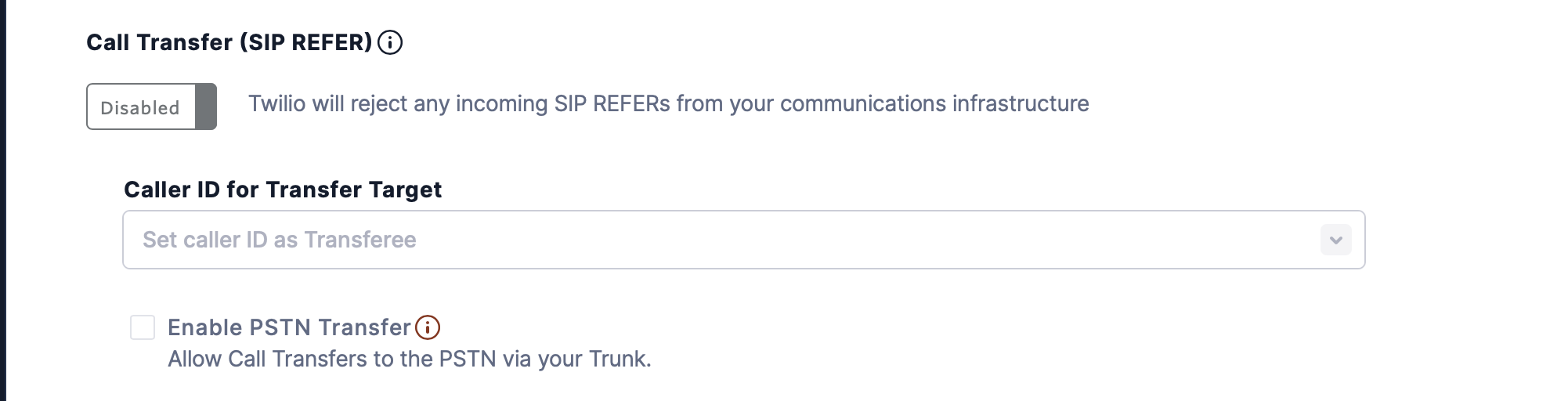
6. If you wish to allow Vogent to transfer calls, you must go to General and enable **Call Transfer (SIP REFER)**
Make sure you leave Secure Trunking disabled.
4. Go to the **Credential Lists** section and create a new credential list, use a strong username and password.
Make sure you leave the IP Access Control List empty, as Vogent does not support a static range of IP addresses for outbound SIP calls outside of the enterprise plan. Please contact us if this is a security requirement for your use case.
5. Click **Save**.
6. If you wish to allow Vogent to transfer calls, you must go to General and enable **Call Transfer (SIP REFER)**
 7. In Vogent, Go to the **Call Settings** tab in the left sidebar, and click **Import via SIP**, and enter the termination URI and credentials you created in steps 1-3. You may also do this using the [Create Number API](/api-reference/create-number) with `type` set to `sip_import`.
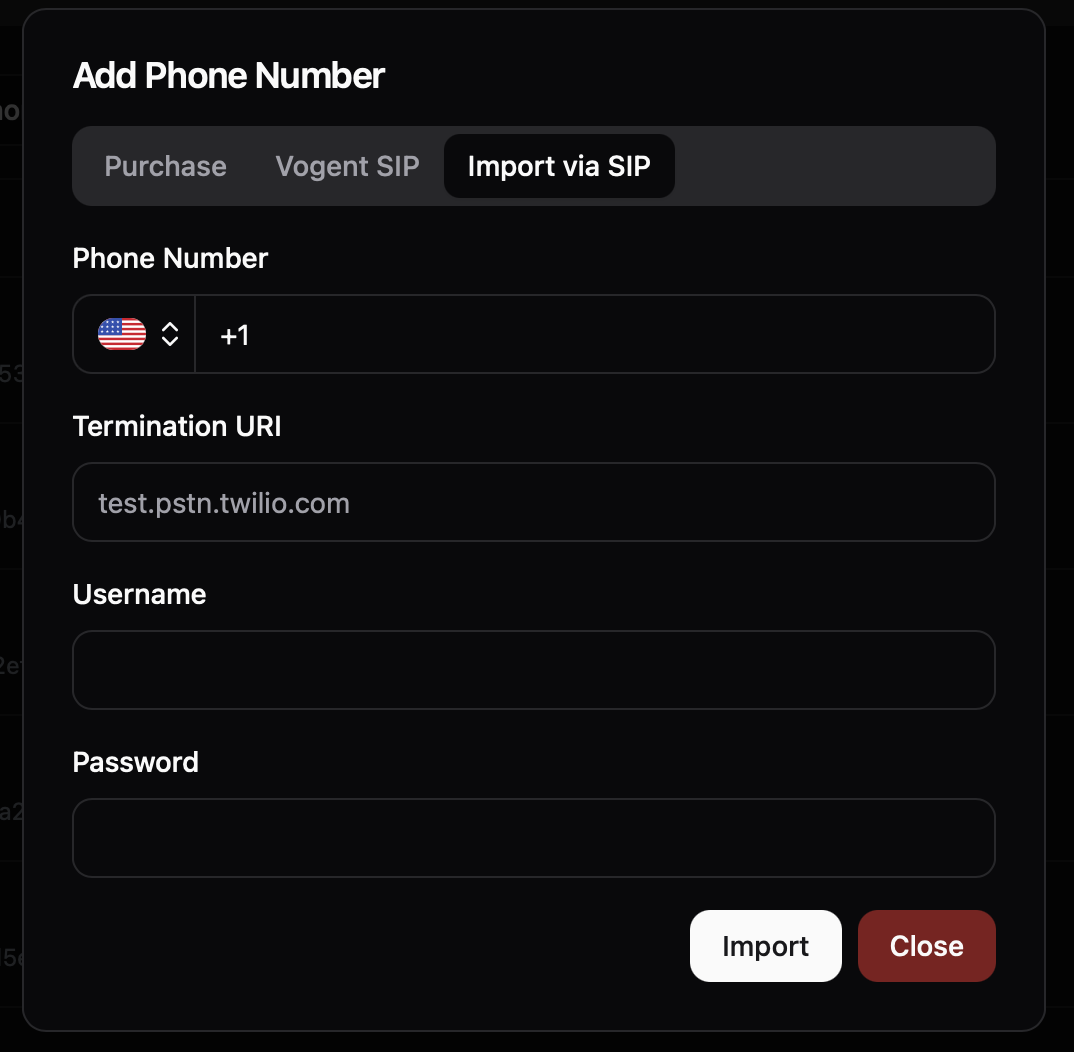 8. Click **Import** to create the number, and you should be able to use the number to make outbound calls.
## For Inbound Calls
1. Make sure you complete the outbound SIP trunking steps first.
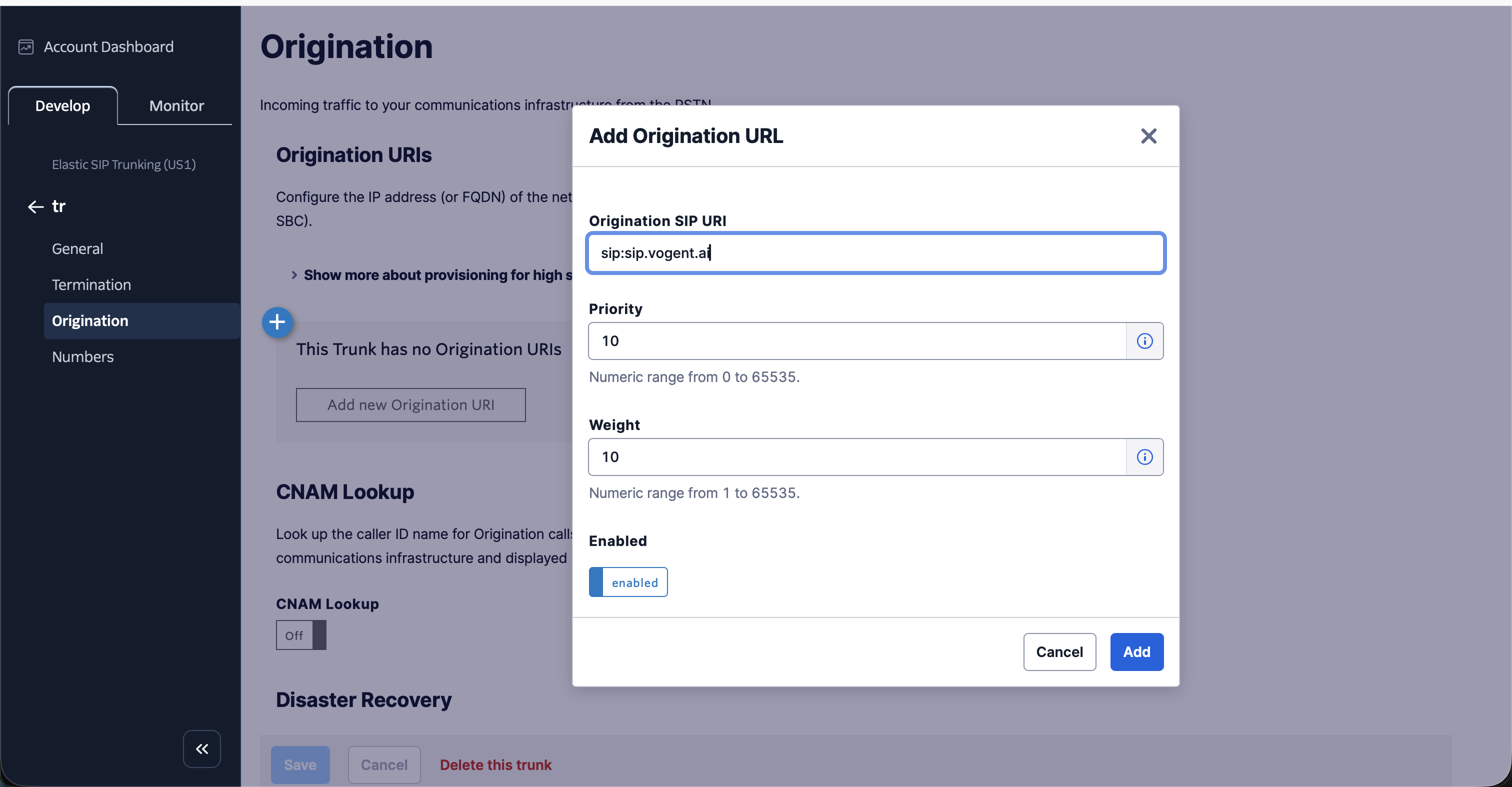
2. Go to the **Origination** tab in your SIP trunk settings, click "Add New Origination URI", enter `sip:sip.vogent.ai`, and click **Add**.
8. Click **Import** to create the number, and you should be able to use the number to make outbound calls.
## For Inbound Calls
1. Make sure you complete the outbound SIP trunking steps first.
2. Go to the **Origination** tab in your SIP trunk settings, click "Add New Origination URI", enter `sip:sip.vogent.ai`, and click **Add**.
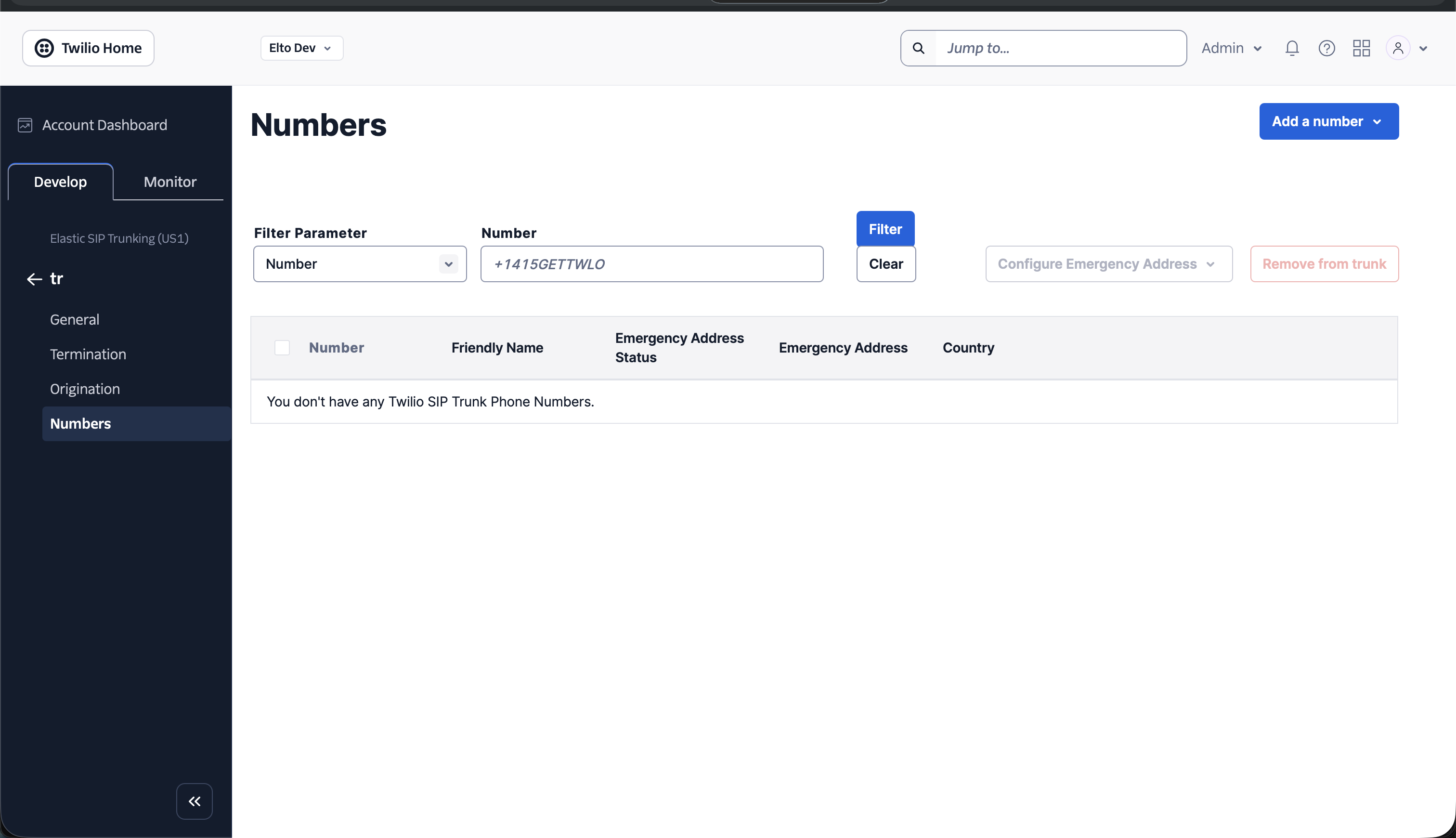
 3. Go to the **Numbers** tab, and add the numbers you wish to use for inbound calls.
 4. Now, go to Vogent, and go to the **Numbers** tab under the Agent you want to use for this phone number, and link the phone number to the agent.