> ## Documentation Index
> Fetch the complete documentation index at: https://docs.vogent.ai/llms.txt
> Use this file to discover all available pages before exploring further.
# Inbound Agent Quickstart
> Create an inbound voice agent that can take orders for a restaurant.
In this quickstart, we'll create an inbound voice agent that can take orders for a restaurant and calculate the total cost of the order. This guide will provide an overview of the platform by walking through the creation of a sample agent; for a more in-depth guide to using Vogent, see the [platform overview](/platform-overview/introduction) guide.
Before you go through this guide, make sure to [create an account](overview).
## The agent
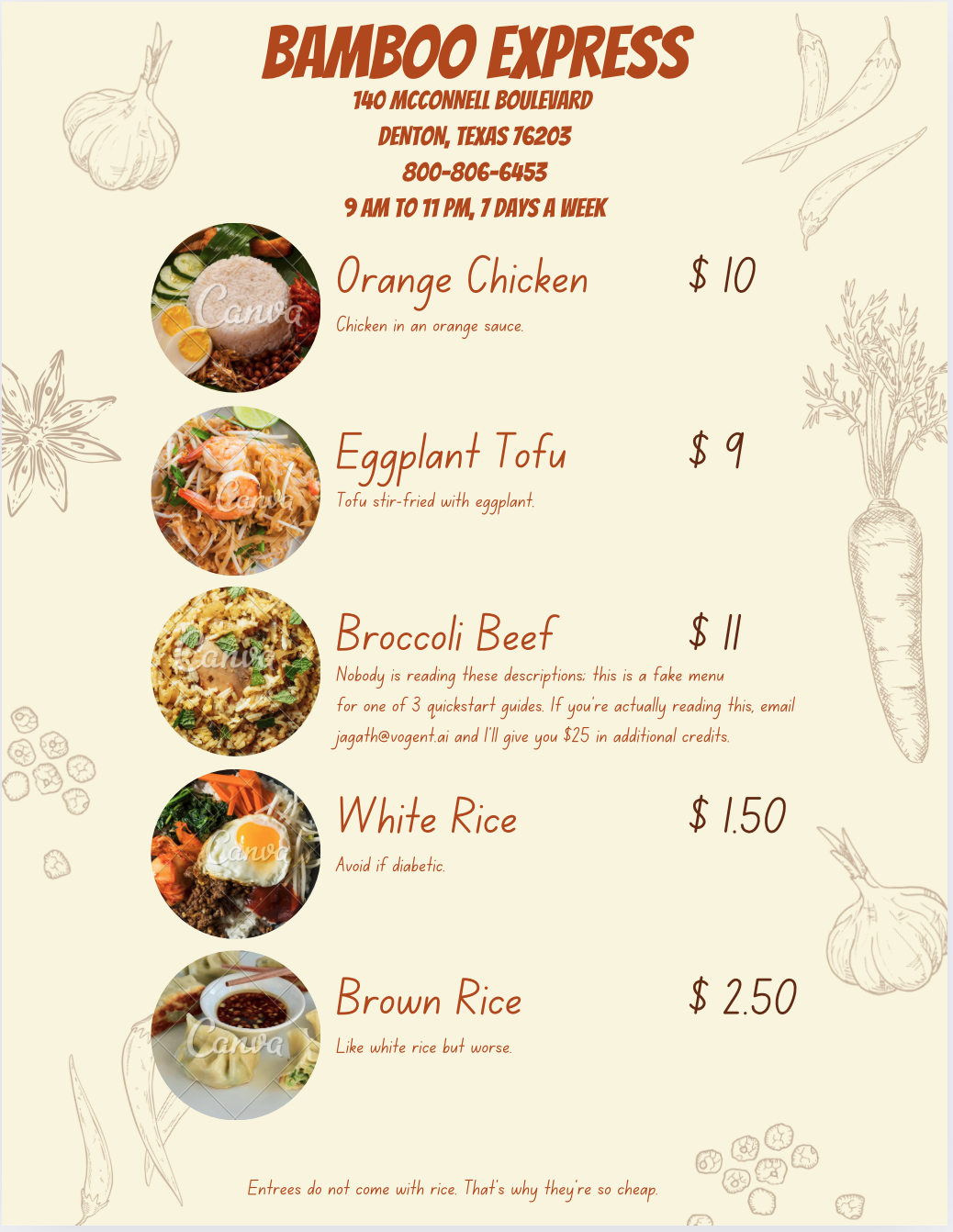
Our inbound agent takes orders and answers basic questions for a fictional restaurant called Bamboo Express.
 ## Creating a new agent
To create a new agent, navigate to the **Agents** tab on the left sidebar and click the **New Agent** button on the top right.
For this quickstart, we'll walk through the pre-built agent together. You can clone this agent to your workspace by following the instructions [here]().
## Configuring the agent
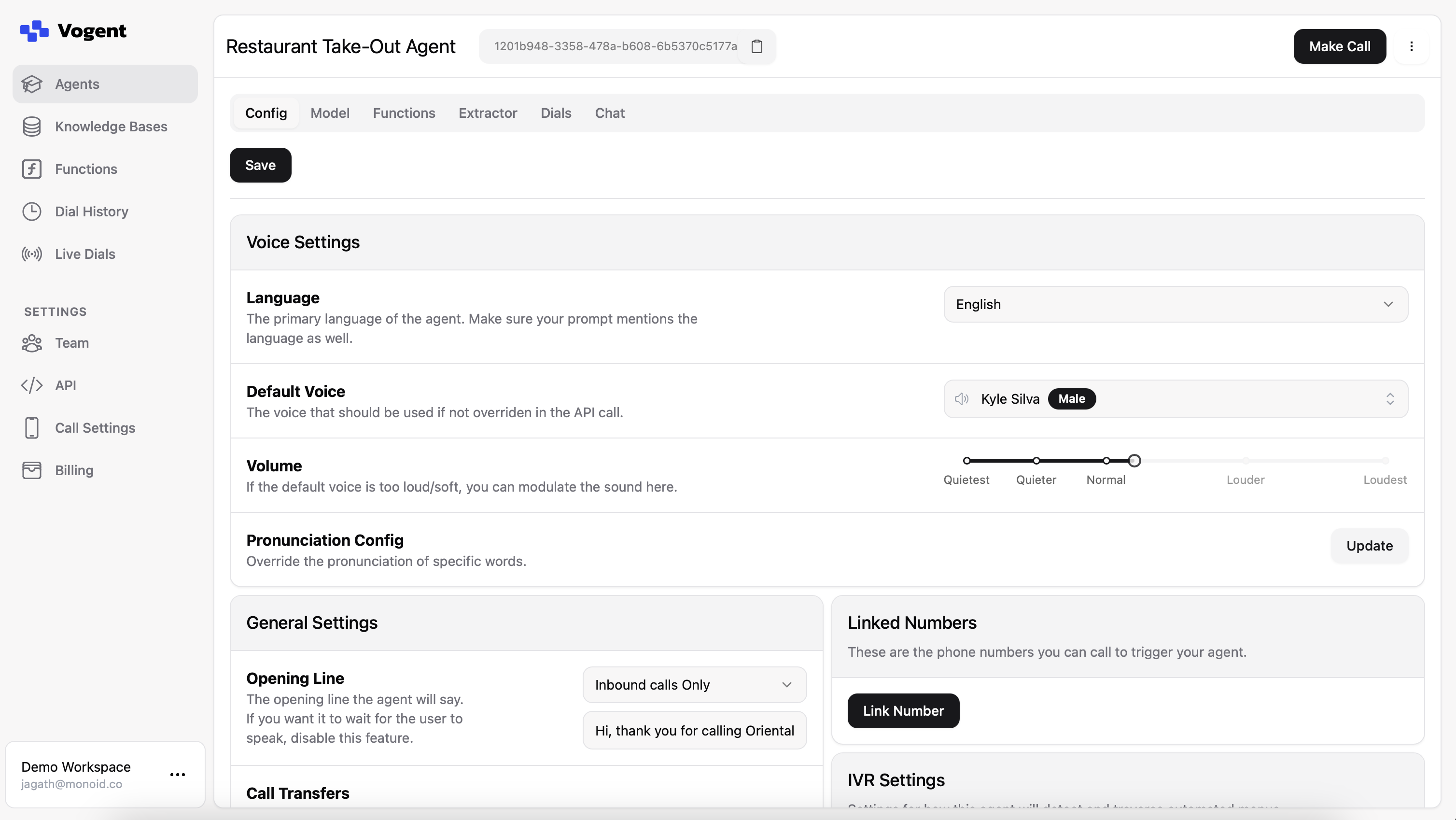
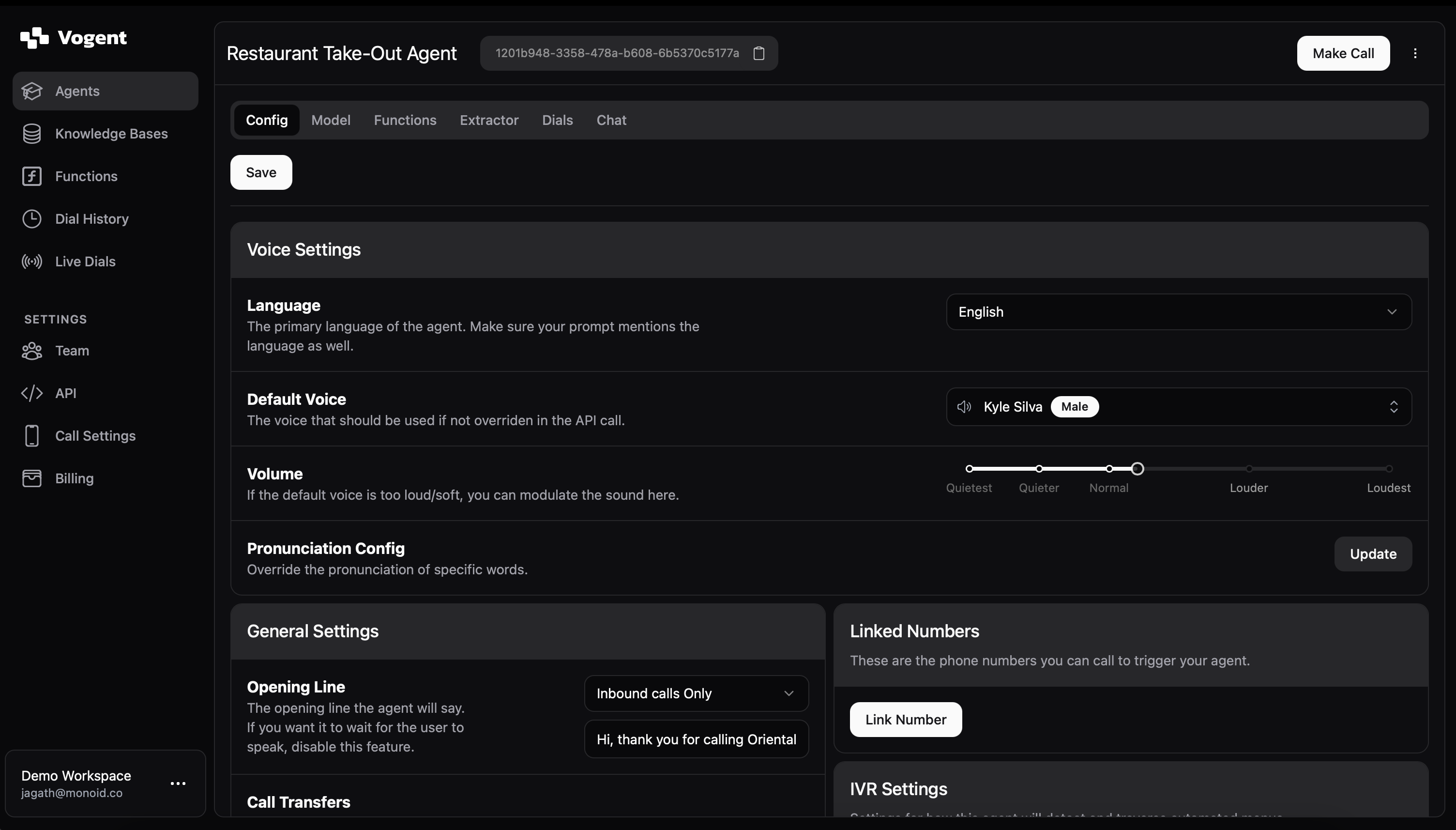
Once you click into your cloned agent, you'll see the agent's configuration page. This is mission control for your agent, where you can configure the agent's behavior and settings, go through past dials and run evaluations, and more.
## Creating a new agent
To create a new agent, navigate to the **Agents** tab on the left sidebar and click the **New Agent** button on the top right.
For this quickstart, we'll walk through the pre-built agent together. You can clone this agent to your workspace by following the instructions [here]().
## Configuring the agent
Once you click into your cloned agent, you'll see the agent's configuration page. This is mission control for your agent, where you can configure the agent's behavior and settings, go through past dials and run evaluations, and more.
 ## Prompting the agent
Click on the **Model** tab to see the language model configuration for this agent. This specific agent is a prompted agent on top of GPT-4o.
For more information on prompting agents and choosing a base model, see the [prompting agents](/platform-overview/prompting-guide) guide.
Ignore previous instructions. You are answering the phones as a representative of the following restaurant:
Bamboo Express
140 McConnell Boulevard
Denton, Texas 76203
When you pick up, open with the following line:
Hi, thank you for calling Bamboo Express, this is Kyle, how can I help you?
The person on the other end will then say how they want to be helped.
For any questions about the store (operating hours, address, phone number, etc.), use the following information to respond:
Name: Bamboo Express
Address: 140 McConnell Boulevard, Denton, Texas 76203
Phone Number: 800-806-6453
Hours: 9 AM to 11 PM, 7 days a week
Open right now: True
Your main purpose is to accept orders. If the customer would like to place an order, ask them what they would like.
These are the possible menu items:
Orange Chicken
Eggplant Tofu
Broccoli Beef
White Rice
Brown Rice
As the customer requests items, ask if they would like anything else, until they confirm that they're done ordering. If they ask for any items that are not on the above menu, let them know that you don't have that item. Entrees do not come with rice.
The customer may provide special instructions; acknowledge these instructions.
Once the customer has completed their order, tell them you'll ring it up, and determine the total for the order. The total can be calculated using the `get_total` function.
This function will return a number with a decimal, which is the cost in dollars of the meal; tell the customer the cost by saying the number of dollars and cents that it is.
Once you have the total, let them know the price and ask for their name.
Finally, let them know that the order will be ready for pickup in 20 minutes.
If you receive any requests that you cannot answer or if the caller needs assistance beyond what is outlined here, apologize and let them know that this line only handles orders.
## Calculating the total using function-calling
The prompt above references a function called `get_total`.
> Once the customer has completed their order, tell them you'll ring it up, and determine the total for the order. The total can be calculated using the `get_total` function.
> This function will return a number with a decimal, which is the cost in dollars of the meal; tell the customer the cost by saying the number of dollars and cents that it is.
Vogent supports leveraging function-calling within agents to perform actions and retrieve information live. To include a function in your agent, you'll need to:
1. Define the function in the **Functions** tab on the left sidebar.
2. Include the function as one of the agent's functions in the Agent's **Functions** tab.
3. Reference the function in your prompt.
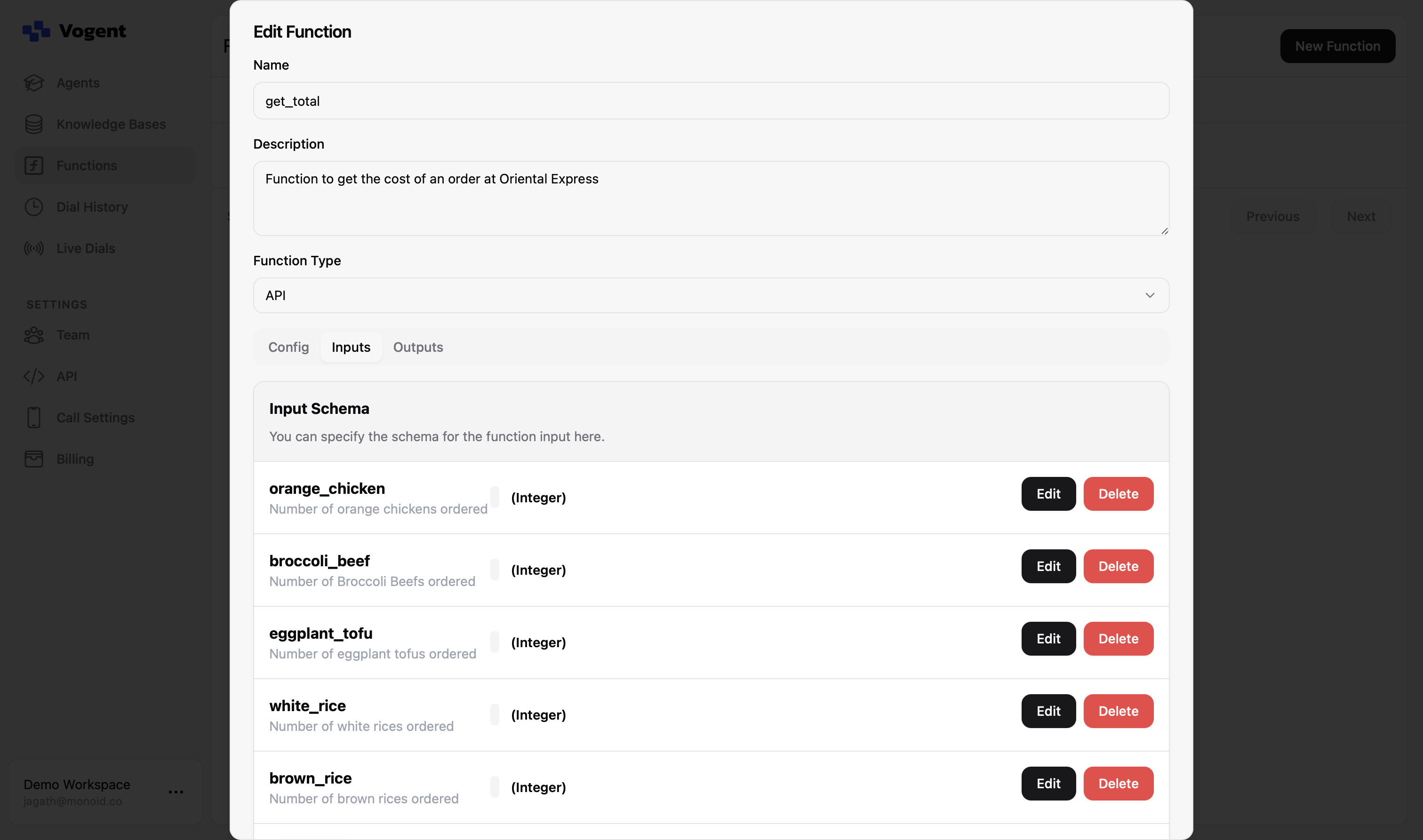
The `get_total` function hits an external API with the counts for each item in the order, and receives the total cost of the order (The API simply sums the cost of each ordered item). To see how we've defined the function, head to the **Functions** tab, and select the `get_total` function.
## Prompting the agent
Click on the **Model** tab to see the language model configuration for this agent. This specific agent is a prompted agent on top of GPT-4o.
For more information on prompting agents and choosing a base model, see the [prompting agents](/platform-overview/prompting-guide) guide.
Ignore previous instructions. You are answering the phones as a representative of the following restaurant:
Bamboo Express
140 McConnell Boulevard
Denton, Texas 76203
When you pick up, open with the following line:
Hi, thank you for calling Bamboo Express, this is Kyle, how can I help you?
The person on the other end will then say how they want to be helped.
For any questions about the store (operating hours, address, phone number, etc.), use the following information to respond:
Name: Bamboo Express
Address: 140 McConnell Boulevard, Denton, Texas 76203
Phone Number: 800-806-6453
Hours: 9 AM to 11 PM, 7 days a week
Open right now: True
Your main purpose is to accept orders. If the customer would like to place an order, ask them what they would like.
These are the possible menu items:
Orange Chicken
Eggplant Tofu
Broccoli Beef
White Rice
Brown Rice
As the customer requests items, ask if they would like anything else, until they confirm that they're done ordering. If they ask for any items that are not on the above menu, let them know that you don't have that item. Entrees do not come with rice.
The customer may provide special instructions; acknowledge these instructions.
Once the customer has completed their order, tell them you'll ring it up, and determine the total for the order. The total can be calculated using the `get_total` function.
This function will return a number with a decimal, which is the cost in dollars of the meal; tell the customer the cost by saying the number of dollars and cents that it is.
Once you have the total, let them know the price and ask for their name.
Finally, let them know that the order will be ready for pickup in 20 minutes.
If you receive any requests that you cannot answer or if the caller needs assistance beyond what is outlined here, apologize and let them know that this line only handles orders.
## Calculating the total using function-calling
The prompt above references a function called `get_total`.
> Once the customer has completed their order, tell them you'll ring it up, and determine the total for the order. The total can be calculated using the `get_total` function.
> This function will return a number with a decimal, which is the cost in dollars of the meal; tell the customer the cost by saying the number of dollars and cents that it is.
Vogent supports leveraging function-calling within agents to perform actions and retrieve information live. To include a function in your agent, you'll need to:
1. Define the function in the **Functions** tab on the left sidebar.
2. Include the function as one of the agent's functions in the Agent's **Functions** tab.
3. Reference the function in your prompt.
The `get_total` function hits an external API with the counts for each item in the order, and receives the total cost of the order (The API simply sums the cost of each ordered item). To see how we've defined the function, head to the **Functions** tab, and select the `get_total` function.
 For more information on how to define functions and use them effectively, see the [functions](/guides/functions) guide.
## Retrieving the order post-call
After the call is completed, you can retrieve the order information from the call using the [Dial Extractor webhook](/webhooks/dial-extractor). The webhook will return the extracted order information in the format defined within the agent's **Extractor** tab.
For this particular agent, we've defined a single extractor field as a JSON object with the following schema using the *Custom* type:
```json Extractor Schema theme={null}
{
"$schema": "http://json-schema.org/draft-07/schema#",
"type": "object",
"properties": {
"items": {
"type": "object",
"properties": {
"orange_chicken": {
"type": "integer",
"description": "Number of Orange Chicken orders",
"minimum": 0
},
"eggplant_tofu": {
"type": "integer",
"description": "Number of Eggplant Tofu orders",
"minimum": 0
},
"broccoli_beef": {
"type": "integer",
"description": "Number of Broccoli Beef orders",
"minimum": 0
},
"white_rice": {
"type": "integer",
"description": "Number of White Rice orders",
"minimum": 0
},
"brown_rice": {
"type": "integer",
"description": "Number of Brown Rice orders",
"minimum": 0
}
},
"additionalProperties": false
},
"subtotal": {
"type": "number",
"description": "Total cost of the order in dollars",
"minimum": 0
},
"special_instructions": {
"type": "string",
"description": "Any special instructions for the order"
},
"customer_name": {
"type": "string",
"description": "Name of the customer placing the order"
},
"completed_order": {
"type": "boolean",
"description": "Whether this order should be submitted (e.g. if the customer says they want to cancel the order, or if no order was placed, this should be false)"
}
},
"required": ["items", "subtotal", "customer_name", "completed_order"],
"additionalProperties": false
}
```
Alternatively, you can define your extractor output field-by-field.
For more information on how to define extractors, see the [extractors](/guides/extractors) guide.
## Making a call
### Phone call
To make a phone call to an inbound agent, you'll first need to create a phone number; see the [getting started](/quickstart/overview) guide for more information.
Once you've created a phone number, you can attach it to the agent by going to the agent's **Config** tab, clicking **Link Number**, and selecting the chosen phone number.
You can then make a call to the agent by dialing the phone number you've attached to the agent.
### Web call
To make a web call to the inbound agent, you can just click on the **Make Call** button on the top-right of the agent's page, toggle to **Web**, then click **Talk**.
## Viewing past calls
To view past calls to the agent, you can go to the agent's **Dials** tab. This will show you a list of all past calls to the agent as well as the extractor results. You can click into any dial to listen to the recording and see the full transcript of the call, among other things.
You can also filter calls by date range, call type, and more, or view dials across agents in the **Dial History** tab on the left sidebar.
### Testing new version on past calls
If you've made changes to your agent, you can test the new version on past calls by clicking the **Run Counterfactual** button when you've clicked into a dial. This will run the new agent on the same call transcript and show you the results.
Counterfactuals will feed call history up to the current line to generate each response, so they won't be *perfect* reconstructions of how the conversation would have gone. LLM-as-judge functionality is coming soon to enable more dynamic agent testing. See the [counterfactuals](/guides/counterfactuals) guide for more information.
## Conclusion
In this quickstart, we've walked through the creation of an inbound agent that can take orders for a restaurant and calculate the total cost of the order. We've also covered how to define functions, use them in prompts, and retrieve the order information post-call.
This was a cursory overview of the different components of Vogent that can be used to create an inbound agent. To go further in depth on any of these features, or to understand functionality not covered here, see the [platform overview](platform-overview/introduction) guide.
You can also check out some of our other quickstart guides for different agent types:
* [Outbound Agent Quickstart](/quickstart/outbound)
* [Flow Builder Quickstart](/quickstart/flow-builder)
For more information on how to define functions and use them effectively, see the [functions](/guides/functions) guide.
## Retrieving the order post-call
After the call is completed, you can retrieve the order information from the call using the [Dial Extractor webhook](/webhooks/dial-extractor). The webhook will return the extracted order information in the format defined within the agent's **Extractor** tab.
For this particular agent, we've defined a single extractor field as a JSON object with the following schema using the *Custom* type:
```json Extractor Schema theme={null}
{
"$schema": "http://json-schema.org/draft-07/schema#",
"type": "object",
"properties": {
"items": {
"type": "object",
"properties": {
"orange_chicken": {
"type": "integer",
"description": "Number of Orange Chicken orders",
"minimum": 0
},
"eggplant_tofu": {
"type": "integer",
"description": "Number of Eggplant Tofu orders",
"minimum": 0
},
"broccoli_beef": {
"type": "integer",
"description": "Number of Broccoli Beef orders",
"minimum": 0
},
"white_rice": {
"type": "integer",
"description": "Number of White Rice orders",
"minimum": 0
},
"brown_rice": {
"type": "integer",
"description": "Number of Brown Rice orders",
"minimum": 0
}
},
"additionalProperties": false
},
"subtotal": {
"type": "number",
"description": "Total cost of the order in dollars",
"minimum": 0
},
"special_instructions": {
"type": "string",
"description": "Any special instructions for the order"
},
"customer_name": {
"type": "string",
"description": "Name of the customer placing the order"
},
"completed_order": {
"type": "boolean",
"description": "Whether this order should be submitted (e.g. if the customer says they want to cancel the order, or if no order was placed, this should be false)"
}
},
"required": ["items", "subtotal", "customer_name", "completed_order"],
"additionalProperties": false
}
```
Alternatively, you can define your extractor output field-by-field.
For more information on how to define extractors, see the [extractors](/guides/extractors) guide.
## Making a call
### Phone call
To make a phone call to an inbound agent, you'll first need to create a phone number; see the [getting started](/quickstart/overview) guide for more information.
Once you've created a phone number, you can attach it to the agent by going to the agent's **Config** tab, clicking **Link Number**, and selecting the chosen phone number.
You can then make a call to the agent by dialing the phone number you've attached to the agent.
### Web call
To make a web call to the inbound agent, you can just click on the **Make Call** button on the top-right of the agent's page, toggle to **Web**, then click **Talk**.
## Viewing past calls
To view past calls to the agent, you can go to the agent's **Dials** tab. This will show you a list of all past calls to the agent as well as the extractor results. You can click into any dial to listen to the recording and see the full transcript of the call, among other things.
You can also filter calls by date range, call type, and more, or view dials across agents in the **Dial History** tab on the left sidebar.
### Testing new version on past calls
If you've made changes to your agent, you can test the new version on past calls by clicking the **Run Counterfactual** button when you've clicked into a dial. This will run the new agent on the same call transcript and show you the results.
Counterfactuals will feed call history up to the current line to generate each response, so they won't be *perfect* reconstructions of how the conversation would have gone. LLM-as-judge functionality is coming soon to enable more dynamic agent testing. See the [counterfactuals](/guides/counterfactuals) guide for more information.
## Conclusion
In this quickstart, we've walked through the creation of an inbound agent that can take orders for a restaurant and calculate the total cost of the order. We've also covered how to define functions, use them in prompts, and retrieve the order information post-call.
This was a cursory overview of the different components of Vogent that can be used to create an inbound agent. To go further in depth on any of these features, or to understand functionality not covered here, see the [platform overview](platform-overview/introduction) guide.
You can also check out some of our other quickstart guides for different agent types:
* [Outbound Agent Quickstart](/quickstart/outbound)
* [Flow Builder Quickstart](/quickstart/flow-builder)